



FAQ
How can I search using ISBN or ISSN numbers?
You can search by entering only the ISBN or ISSN number into the search box on the [Library Catalog] tab.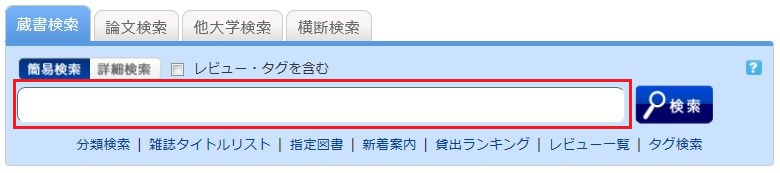
Alternatively, you can search from the advanced search screen by clicking the [Advanced Search] button on the [Library Catalog] tab.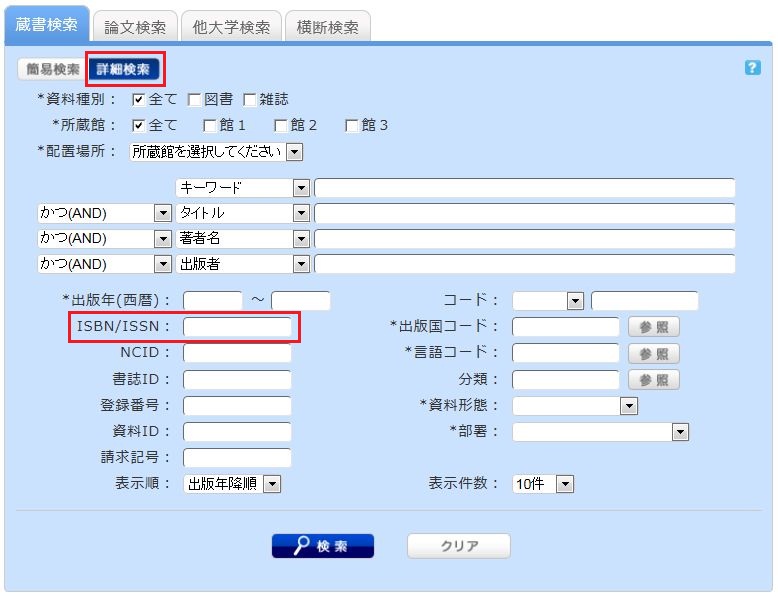
You can perform a search by entering the information in the ISBN / ISSN field.
ISBN (International Standard Book Number): A number used to identify books.
ISSN (International Standard Serial Number): A number used to identify journals/serials.
What characters can I use in the [Book Search] tab?
Available Characters
The characters that can be used on the Japanese version of the page are Kanji, Hiragana, Katakana, and alphanumeric characters. You can enter English letters in either uppercase or lowercase. You may also use either full-width or half-width characters.
Searching for Arabic, Devanagari, African, and Southeast Asian scripts
You can search using the original spelling (the script as it appears in the material), but you can also search using keywords romanized into the Latin alphabet according to the ALA-LC Romanization Tables provided by the Library of Congress. Since some materials are cataloged only with romanized Latin alphabet text, if you do not get any results with the original spelling, please romanize the terms and try searching again.
How should I search if I don't remember the exact title?
When you type a partial keyword on the [Library Catalog] tab, a list of candidate materials starting with the entered string will be displayed (Suggest feature).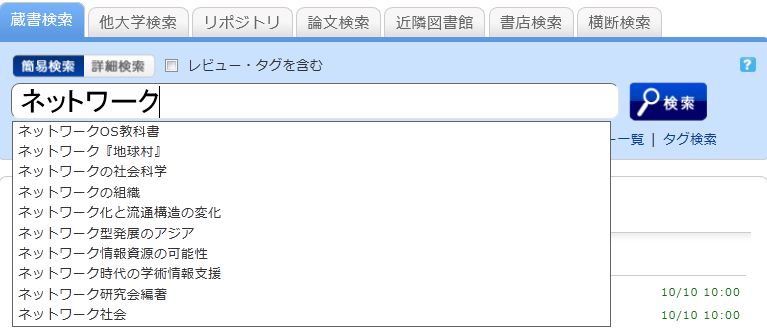
Select one from the displayed candidates and click the [Search] button to start the search.
How can I combine multiple search criteria? (e.g., searching for items containing "○○" or "△△")
You can perform the following three types of searches (logical operations) by entering multiple search terms into a single search field or by entering terms into multiple search fields.
When entering multiple search terms into a single search field (Available in both Simple Search and Advanced Search screens)
AND Search
- : Searches for materials that satisfy two or more search terms simultaneously.
- How to enter: Connect each search term with a " " (space).
- Example: To search for materials that contain both "Japan" and "America":
- "Japan America"
OR Search
- : Searches for materials that satisfy at least one of two or more search terms.
- How to enter: Connect each search term with a "+" (plus sign).
- Example: To search for materials that contain either "Japan" or "America":
- "Japan+America"
NOT Search
- : Searches for materials that satisfy a certain condition while excluding those that meet other conditions.
- How to enter: Connect each search term with a "^" (caret sign).
- Example: To search for materials that contain "Japan" but not "America":
- "Japan^America"
When entering search terms into multiple search fields (Available in the Advanced Search screen)
AND Search
- : Searches for materials that satisfy two or more search terms simultaneously.
- How to enter: Enter search terms into multiple fields and select "AND" from the pull-down menu between the fields.
- Example: To search for materials where the title contains "Japan" AND the author name contains "Tokyo":
- Title: Japan
Pull-down menu: AND - Author Name: Tokyo
NOT Search
- : Among materials that satisfy one condition, this excludes those that satisfy another condition.
- How to enter: Enter search terms into multiple fields and select "NOT" from the pull-down menu between the fields.
- Example: To search for materials where the title contains "Japan" but the author name does NOT contain "Tokyo":
- Title: Japan
Pull-down menu: NOT - Author Name: Tokyo
Primary and Secondary Search Fields
The following are called primary search fields, which can be used to perform a search independently using only their search terms.
- Keyword
- Title
- Author
- Publisher
- Subject
- Review
- Tag
- Classification
- ISBN/ISSN
- NCID
- Bibliographic ID
- Accession Number
- Material ID
- Call Number
The following are called secondary search fields, which cannot be used for a search unless combined with one or more primary search fields. On the search screen, these fields are marked with an asterisk (*) before their names.
- Material Type
- Library
- Publication Year
- Country of Publication Code
- Language Code
- Location
- Material Format
- Department
Useful symbols for [Book Search] (How can I search for items starting with "○○" or ending with "○○"?)
There are two search methods available: Keyword Search and Literal Search.
- In a Keyword Search, the system searches for materials that contain the entered search value as a word (= keyword).
In a Literal Search, the system searches for materials that contain the entered search value simply as a string of characters (= literal).
You can specify the following search methods for Literal Search:
Search Method Description Input Example Match Example Exact Match Searches for materials that exactly match the entered search string. end end END End Starts With Searches for materials that start with the entered search string. end* ending Contains Searches for materials that contain the entered search string. end weekends Ends With Searches for materials that end with the entered search string. *end weekend
- The following search fields are usually searched using Keyword Search. To perform a Literal Search in the keyword search fields listed below, please add a "#" at the beginning of your search value.
Keyword Search Fields- Title
- Author
- Publisher
- Subject
- Keyword
- The following search fields are usually searched using Literal Search.
Literal Search Fields- Publication Year
- Classification
- ISBN/ISSN
- Country of Publication Code
- Language Code
- NCID
- Accession Number (Starts with match only)
- Material ID (Starts with match only)
- Call Number (Starts with match only)
By using Literal Search, you can set search conditions in detail as follows:
Search Method Input Example
(Field: Search Value)Match Example Search for materials where the title contains the keyword "Nihon" (Keyword Search) Title: Nihon History of Nihon
Folktales of Nihon
America and NihonSearch for materials where the title is "Nihon" (Literal Search) Title: #Nihon Nihon Search for materials where the title ends with "Nihon" (Literal Search) Title: #Nihon America and Nihon
Rebirth of Nihon
NihonSearch for materials published in the 1900s (Literal Search) Publication Year: 19 1945
What search fields are available on the [Book Search] advanced search screen?
On the Advanced Search screen, you can search using the following fields.
- In the input examples, "△" represents one or more spaces.
- [Local] indicates search fields that are valid only for local searches. When performing an NII search, the values entered in these fields are ignored.
| Search Field | Description | Input Example / Targeted Materials |
| Material Type | Narrows the search by material type. | Check the checkboxes for material types such as "All," "Book," "Journal," etc. |
| Campus Library [Local] |
Narrows the search by campus or library. | Check the checkboxes for the target campus or library. |
| Location | Selects a location from the pull-down menu to search. | Ex: Main Library 1F |
| [Local] | Materials located in the Main Library 1F | |
| Keyword | Searches all fields: title, author, and subject. May result in a large number of hits. | Ex 1) Nihon△Tanaka△Politics |
| Materials containing "Nihon", "Tanaka", and "Politics" anywhere in the title, author, or subject. | ||
| Ex 2) Nihon+Politics | ||
| Materials containing either "Nihon" or "Politics" anywhere in the title, author, or subject. | ||
| Ex 3) Nihon^Politics | ||
| Materials containing "Nihon" but NOT "Politics" anywhere in the title, author, or subject. | ||
| Ex 4) #Nihon no Politics | ||
| Materials where the title, author, or subject is exactly "Nihon no Politics". | ||
| Ex 5) #Nihon no Politics | ||
| Materials where the title, author, or subject ends with "Nihon no Politics". | ||
| Title | Searches titles, journal names, series titles, etc. | Ex 1) Nihon no Politics |
| Materials containing "Nihon", "no", and "Politics" in the title. | ||
| Ex 2) Nihon△Politics | ||
| Materials containing "Nihon" and "Politics" in the title. | ||
| Ex 3) #Nihon no Politics | ||
| Materials where the title is exactly "Nihon no Politics". | ||
| Ex 4) #Nihon no Politics | ||
| Materials where the title contains "Nihon no Politics". | ||
| Author | Searches authors, editors, translators, original authors, etc. | Ex 1) Fuji Hanako |
| Works by "Fuji Hanako" (names can be entered together). | ||
| Ex 2) Fuji△Hanako or Fuji,Hanako | ||
| Works by an author containing "Fuji" and "Hanako" in their name. | ||
| Ex 3) Fuji | ||
| Works by an author with "Fuji" in their surname or first name. | ||
| Ex 4) Fuji△Hanako (Kana reading) | ||
| Works by "Fuji Hanako" (Searching by phonetic reading [Hiragana/Katakana] is also possible). | ||
| Ex 5) Margaret△Mitchell | ||
| Works by Margaret Mitchell. | ||
| Ex 6) #Fuji | ||
| Works by an author whose name starts with "Fuji". | ||
| Publisher | Searches publishers. | Ex 1) Fujitsu Shuppan |
| Materials published by "Fujitsu Shuppan". | ||
| Ex 2) Fuji△Shuppan | ||
| Materials published by a publisher containing "Fuji" and "Shuppan". | ||
| Ex 3) Fujitsu Press | ||
| Materials published by "Fujitsu Press" (do not include words like "Inc.", "Ltd."). | ||
| Subject | Searches by terms representing the subject of the material. | Ex 1) Library and Information Science |
| Materials with the subject "Library and Information Science". | ||
| Ex 2) Toshokan△Joho | ||
| Materials whose subject readings include "Toshokan" and "Joho". | ||
| Review [Local] |
Searches registered reviews. | Ex 1) Programming |
| Materials containing "Programming" in a registered review. | ||
| Ex 2) Recommended△Info | ||
| Materials containing "Recommended" and "Info" in a registered review. | ||
| Tag [Local] |
Searches registered tags. | Ex 1) Math Intro |
| Materials containing "Math Intro" in a registered tag. | ||
| Ex 2) Life-Changing Book | ||
| Materials containing "Life-Changing Book" in a registered tag. | ||
| Publication Year | Searches by publication year. | Ex 1) 2006 |
| Materials published in 2006 (specify as a 4-digit year). | ||
| Ex 2) 199* | ||
| Materials published in the 1990s. | ||
| Ex 3) 1990-2000 | ||
| Materials published between 1990 and 2000 (specify each as a 4-digit year). | ||
| ISBN/ISSN | Searches by ISBN or ISSN. | Ex 1) 4881357611 |
| Books with ISBN 4-88135-761-1 (enter without hyphens). | ||
| Ex 2) 13407287 | ||
| Serials with ISSN 1340-6297 (enter without hyphens). | ||
| NCID | Searches by the bibliographic record ID assigned to NII bibliographic records. | Ex) AN10202348 |
| Materials with NII bibliographic record ID AN10202348. | ||
| Bibliographic ID | Searches by the bibliographic record ID. | Ex) SB00078405 |
| Materials with bibliographic record ID SB00078405. | ||
| Accession Number | Searches by the accession number, an internal administrative management number. | Ex) 123456789 |
| [Local] | Materials with accession number 123456789. | |
| Material ID | Searches by the material ID for circulation/returns. | Ex) 0123456789 |
| [Local] | Materials with material ID 0123456789. | |
| Call Number | Searches by call number. | Ex) 10-10||Ho||10||4 |
| [Local] | Materials with call number 10-10||Ho||10||4 (case-sensitive). | |
| Code | Searches by various code numbers or IDs. Select the code type from the pull-down menu and enter the number in the field on the right. | Ex 1) Pull-down: Select NCID, Right field: AN10070600 |
| ・NCID (NII Bibliographic Record ID) | Materials with NII bibliographic record ID AN10070600. | |
| ・LCCN (LC Card Number) | ||
| ・NBN (National Bibliography Number) | ||
| ・NDLCN (NDL Card Number) | ||
| ・NDLPN (NDL Serial Number) | ||
| ・FID (Family ID) | ||
| ・OTHN (Other Numbers) | ||
| Country Code | Searches by country code. Select the [Reference] button on the right of the input field, check the desired country, and click [OK], or enter the code directly. | Ex) gw |
| Materials published in Germany (case-insensitive). | ||
| Language Code | Searches by language code for title or main text. Select the [Reference] button on the right, check the desired language, and click [OK], or enter the code directly. | Ex) epo |
| Materials written in Esperanto. | ||
| Classification | Searches by classification number representing the subject. | Ex 1) 311 |
| Materials with classification number 311. | ||
| Ex 2) 31* | ||
| Materials with classification numbers starting with 31. | ||
| Material Format | Selects material format from the pull-down menu to search. | Ex) Video |
| [Local] | Materials with format "Video". | |
| Department | Selects department from the pull-down menu to search. | Ex) Library |
| [Local] | Materials belonging to the library department. |
Can I search for Japanese materials using only Roman letters (Romaji)?
You can search by converting Romanized Japanese (Romaji) to Katakana by adding a "$" mark to the beginning of the Romanized search term.
- Romaji input supports both Kunrei-shiki and Hepburn systems.
- Long vowel markers are not supported. For example, to get the same search results as "キーワード" (kiwado), please enter "$kiwado" instead of "$kiwâdô".
- In the input examples, "△" represents one or more spaces.
| Input Example | Search Results | Match Example |
|---|---|---|
| $genji | Displays the same search results as entering "ゲンジ" (Genji). | Genji Sekai no Bungaku Genji Monogatari no Hito to Kokoro Genji Monogatari no Sekai |
| $syamisen+$wahuu | Displays the same search results as entering "シャミセン+ワフウ" (Syamisen+Wahuu). | Tamagiku to sono Syamisen Wahuu Wahuu to Youshiki |
| $nihon△$amerika | Displays the same search results as entering "ニホン△アメリカ" (Nihon△Amerika). | Nichibei Kankei Keyword Amerika no Kokoro/Nihon no Kokoro Nichibei Doumei |
Can I use materials labeled as "Laboratory/Office" (Kenkyushitsu) in the OPAC search results?
Please note that materials located in research institutes cannot be accessed through the library.
Examples include the Institute of Economics and Trade, the Center for Language Research, the Institute for the Humanities, and the Institute for the Study of Japanese Folk Culture.
What should I do if I cannot find the material I'm looking for in the [Book Search] tab? (Part 1)
If you cannot find any results when searching via the [Library Catalog] tab in the OPAC, please try the following:
- Check if the kanji or spelling of your keywords is correct.
- Are you perhaps searching by "article title" or "author of the article"? Try searching by the journal title instead.
If you wish to search by "article title" or "author of the article," please try searching via the [Article Search] tab. You may be able to read the full text of electronic journals on your computer. - If you still cannot find the material, try searching via the [Search Other Universities] tab or the [Cross-Search] tab.
If you can confirm that another library holds the material, you may be able to visit that library in person to use it, or request to have the material sent to your library.
What should I do if I cannot find the material I'm looking for in the [Book Search] tab? (Part 2)
Please refer to the following page.
How to Find Materials (Library Website)
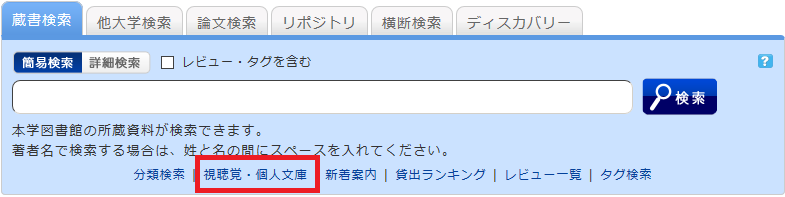
About "Audiovisual/Personal Collections" found under the keyword input box in the [Book Search] tab or in the catalog menu.
We provide lists for categories that are frequently requested to be viewed as a whole, even though they cannot be searched using secondary keys such as location.
You can also change the display target using the pull-down menu.
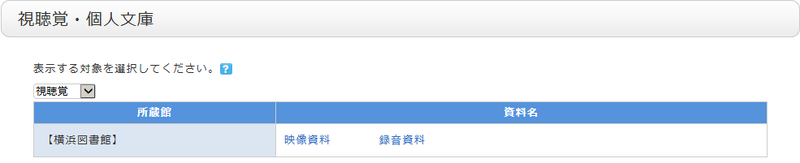
What are the tags displayed on the tag search screen?
The library provides tags for materials that are useful to have in list form, such as textbooks and materials selected during student selection tours.
How can I search for reviews and tags?
You can search the titles and full text of reviews and tags using the following five methods:
- Refer to "Recent Tags"
 or "New Reviews"
  on the top page.
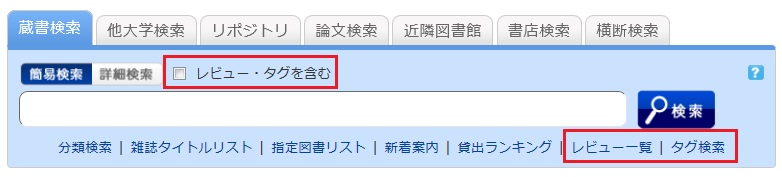
- Select "Review List" or "Tag Search" located below the search box on the [Library Catalog] tab.
- On the [Basic Search] screen of the [Library Catalog] tab, check the "Include Reviews/Tags" box and perform a search.
- On the [Advanced Search] screen of the [Library Catalog] tab, select "Review" or "Tag" from the pull-down menu for the search items.
(Compared to a basic search, this allows you to search using multiple conditions.)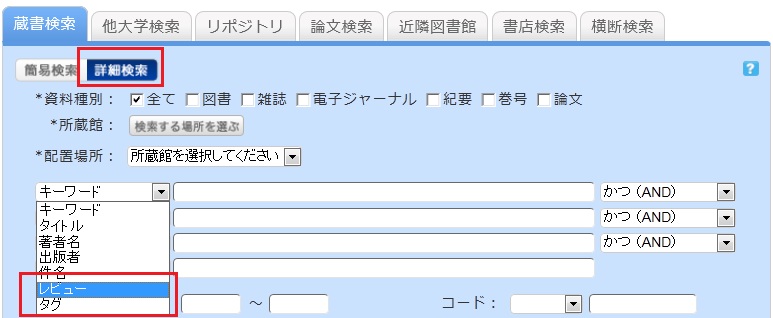
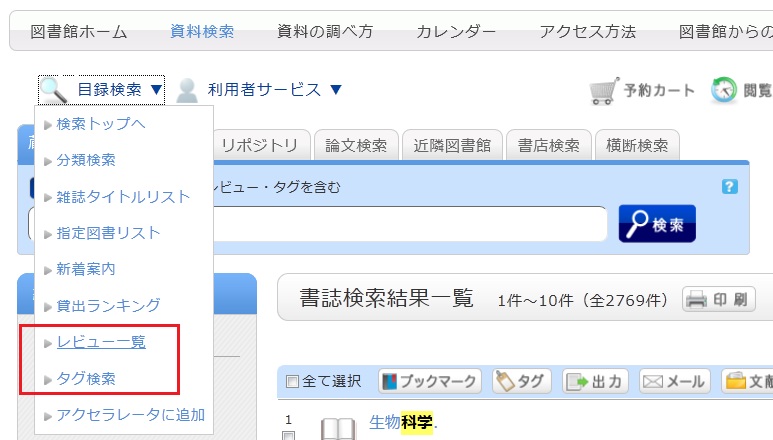
- Select "Review List" or "Tag Search" from the catalog search menu.
On the search results list screen, how do I return to the original list after narrowing down my search using the left-hand menu?
When you enter keywords and filter your search results using the menu on the left side of the bibliographic search results screen, the screen will appear as follows.
In this example, the material type is limited to "Book."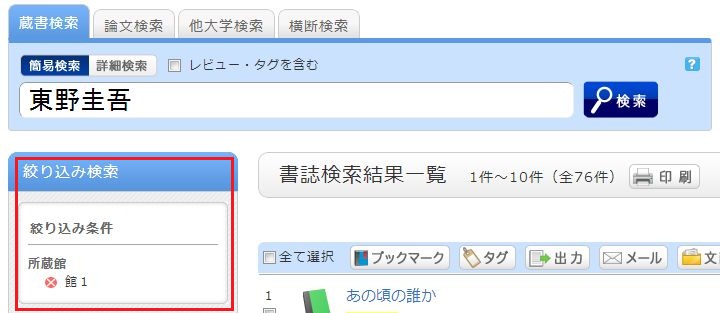
To remove a filtering condition and return to the original search results, click the red × button in the white area located under "Filtered by" in the left menu.
Even if you have applied multiple filters, you can remove any specific filter using the method above, regardless of the order in which they were applied.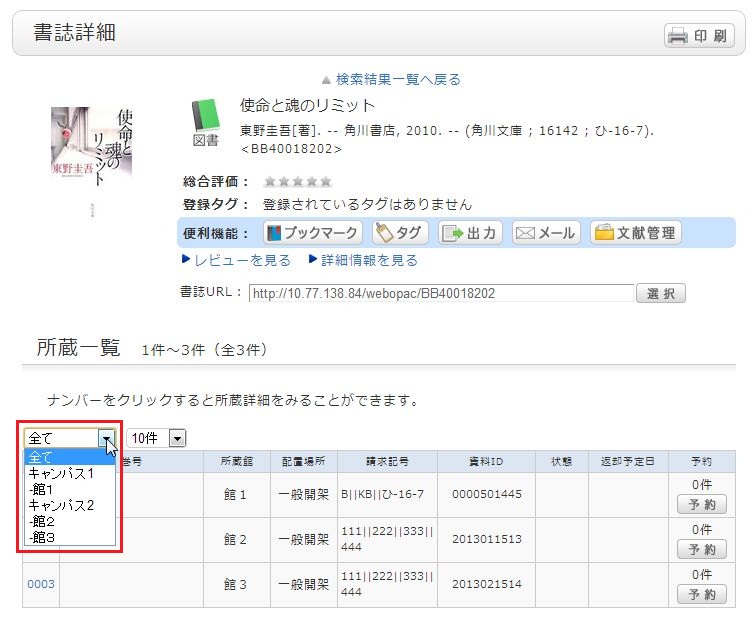
Even after you have filtered by library, selected a title, and moved to the bibliographic details screen, you can still remove the filter or re-filter by another library.
How do I import bibliographic information from the OPAC to EndNote Web?
You can import bibliographic information from the OPAC into EndNote Web.
- How to import bibliographic information directly from the OPAC to EndNote Web (Direct Import)
(You must download the plug-in before importing.)- Log in to EndNote Web.
* If you do not have an EndNote account, please register a new user account via "Register for an account."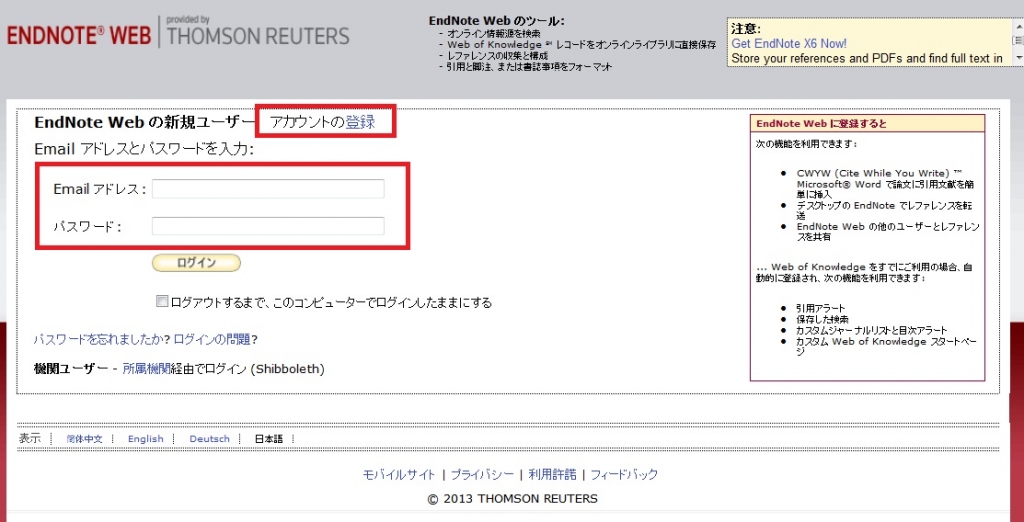
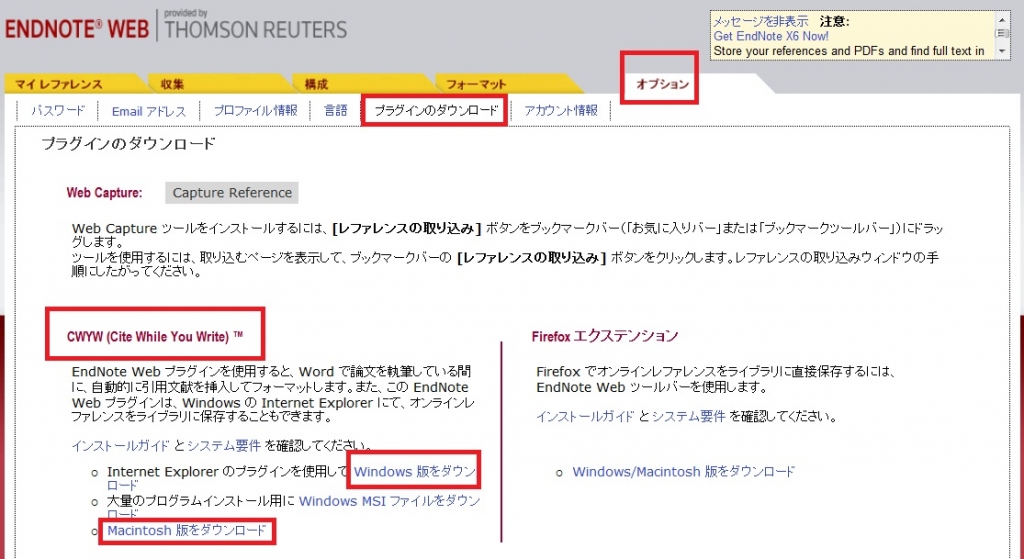
- Click [Options] > [Download Installers].
- If you are using Internet Explorer or Safari, select "Download Windows" or "Download Macintosh" under CWYW (Cite While You Write) based on your computer's OS to download the plug-in.
- If you are using Firefox:
- Click "Download Windows" or "Download Macintosh" under Firefox Extension to download the plug-in.
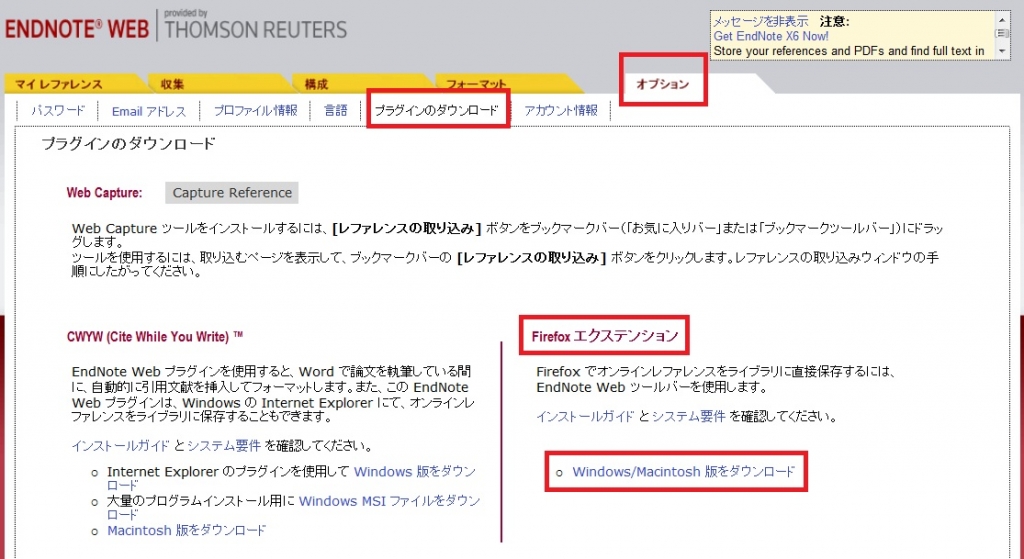
- You will be prompted to restart Firefox; please do so.
- In the Firefox menu, go to [Tools] → [Add-ons] → [Extensions] and click "Options" for EndNote Web.
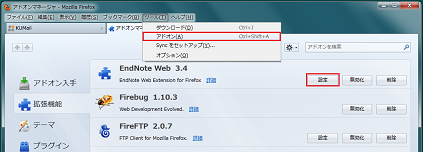
- Confirm that the checkbox in the pop-up is checked. (If it is not, please check it.)
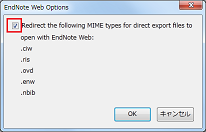
This completes the plug-in download. - If you are using Internet Explorer or Safari, select "Download Windows" or "Download Macintosh" under CWYW (Cite While You Write) based on your computer's OS to download the plug-in.
- From the bibliographic search results or details screen, click "Bibliographic Management."
(In the search results list, you must select the items you wish to import.) - When the "Select Export Destination" pop-up appears, select "EndNote Web."
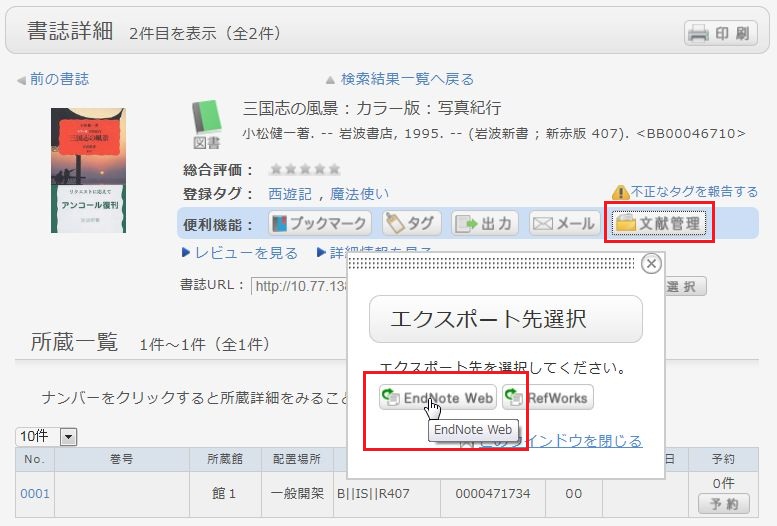
- The selected bibliographic records will be imported into EndNote Web. (If you are not logged in to EndNote Web, the login screen will appear; please enter your email address and password to log in.)
- Log in to EndNote Web.
- Method without downloading a plug-in
- From the bibliographic search results or details screen, click "Export."
(In the search results list, you must select the items you wish to import.) - When the "Select File Export Format" pop-up appears, select "RIS format."
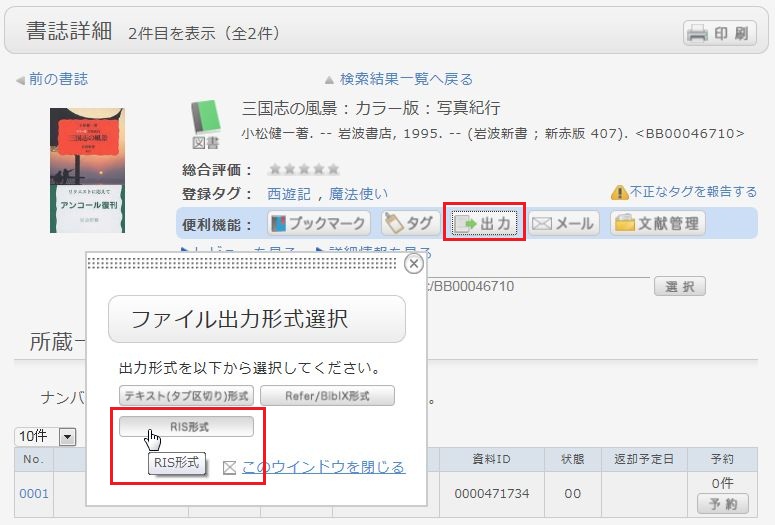
- The file will be downloaded; please save it to an appropriate location on your computer.
- Log in to EndNote Web.
* If you do not have an EndNote account, please register a new user account via "Register for an account." - Click [Collect] → [Import References].
- Click the [Browse] button for "File" and select the file you saved earlier.
- Select "RefMan RIS" for "Import Option."
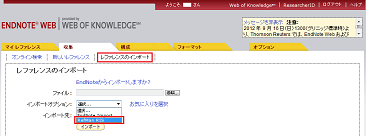
- Specify the destination folder in "Import to" and click the [Import] button.
- The selected bibliographic records will be imported into EndNote Web.
- From the bibliographic search results or details screen, click "Export."
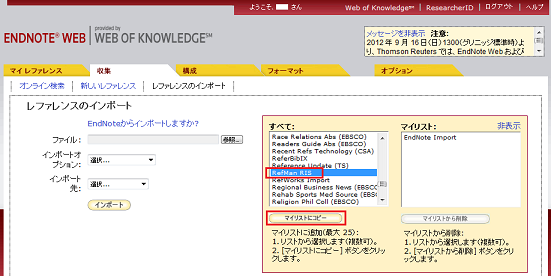
* If "RefMan RIS" is not displayed in the "Import Option," click [Select Favorites], select "RefMan RIS," and click [Copy to Favorites] to add it to your list.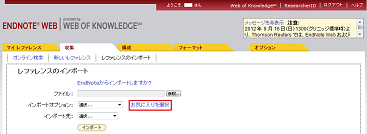
 Reference:
EndNote Web Help - Importing References
EndNote Web System Requirements (Supported Browsers)(USACO)
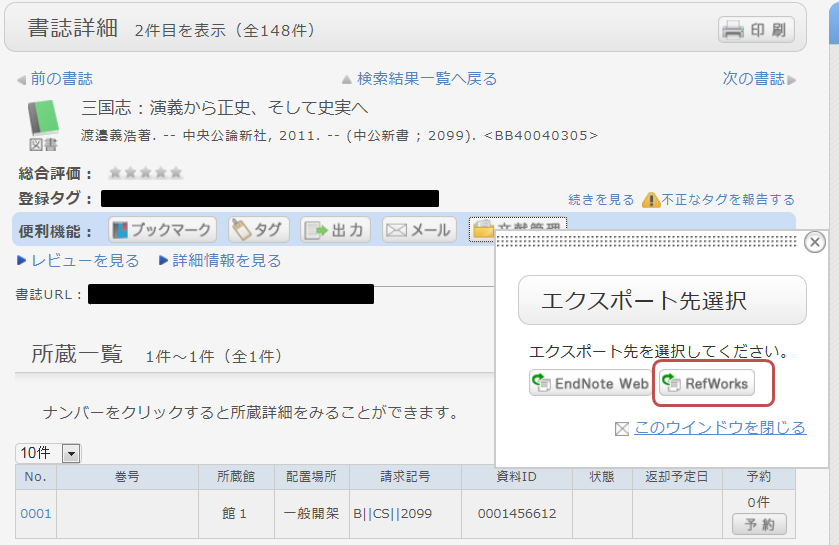
How do I import bibliographic information from the OPAC to RefWorks?
- You can import bibliographic information from the OPAC to RefWorks via the following screen.
- You can import bibliographic information from the OPAC to RefWorks via "direct import" without needing to download any plug-ins.
- Please register as a new user if it is your first time using the service.
- From the bibliographic search results or details screen, click "Bibliographic Management."
(In the search results list, you must select the items you wish to import.) - When the "Select Export Destination" pop-up appears, select "RefWorks."
- The selected bibliographic records will be imported into RefWorks. (If you are not logged in to RefWorks, the login screen will appear; please enter your login name and password to log in.)
Reference:
RefWorks (Sunmedia)
When you only know part of the title of the material.
[Book Search] tab, if you enter part of a keyword, a list of candidate materials starting with the entered string will be displayed (Suggestion function).
Select one from the displayed candidates and click the [Search] button to start the search.