



FAQ
How do I import bibliographic information from the OPAC to EndNote Web?
You can import bibliographic information from the OPAC into EndNote Web.
- How to import bibliographic information directly from the OPAC to EndNote Web (Direct Import)
(You must download the plug-in before importing.)- Log in to EndNote Web.
* If you do not have an EndNote account, please register a new user account via "Register for an account."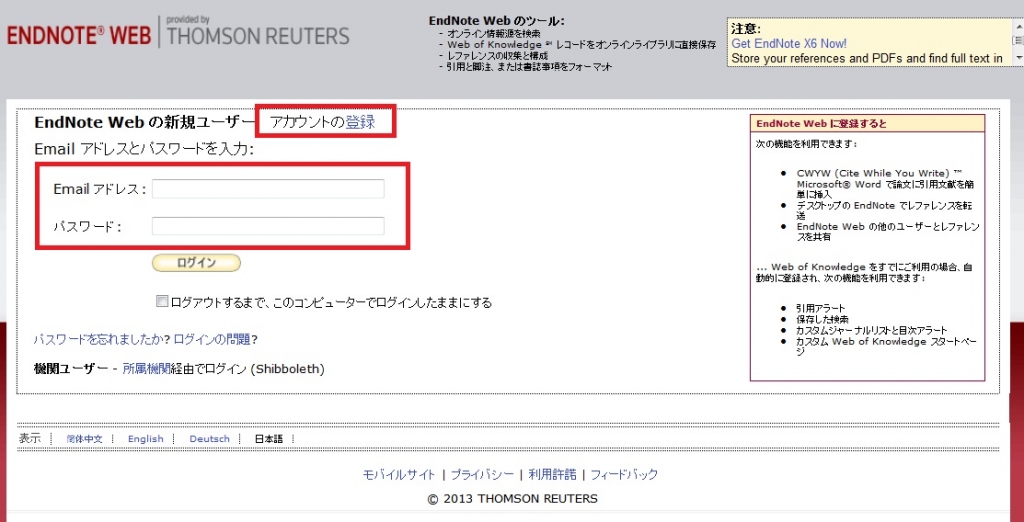
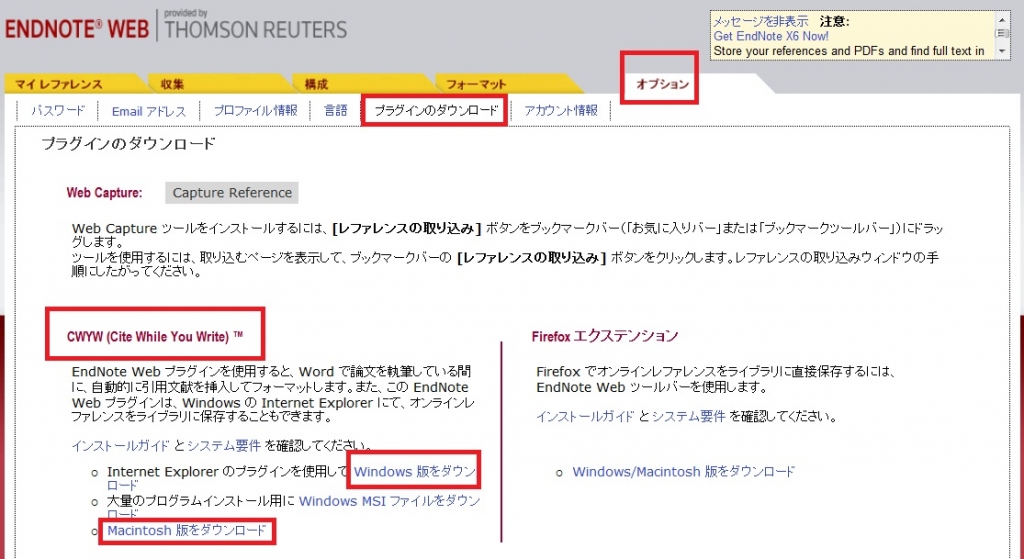
- Click [Options] > [Download Installers].
- If you are using Internet Explorer or Safari, select "Download Windows" or "Download Macintosh" under CWYW (Cite While You Write) based on your computer's OS to download the plug-in.
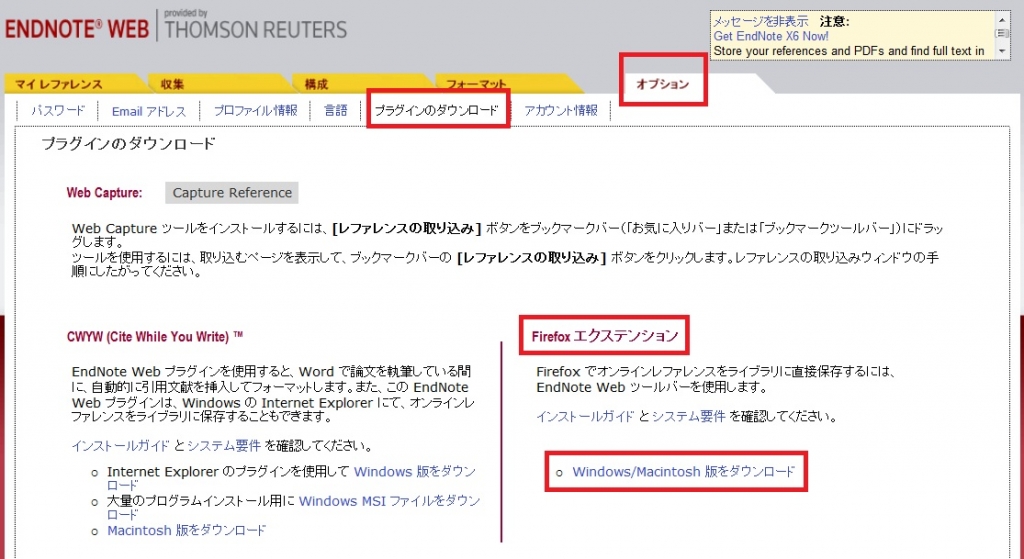
- If you are using Firefox:
- Click "Download Windows" or "Download Macintosh" under Firefox Extension to download the plug-in.
- You will be prompted to restart Firefox; please do so.
- In the Firefox menu, go to [Tools] → [Add-ons] → [Extensions] and click "Options" for EndNote Web.
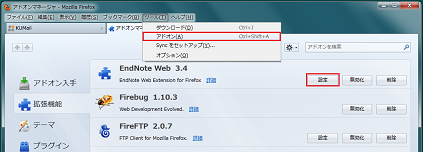
- Confirm that the checkbox in the pop-up is checked. (If it is not, please check it.)
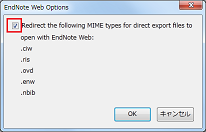
This completes the plug-in download. - If you are using Internet Explorer or Safari, select "Download Windows" or "Download Macintosh" under CWYW (Cite While You Write) based on your computer's OS to download the plug-in.
- From the bibliographic search results or details screen, click "Bibliographic Management."
(In the search results list, you must select the items you wish to import.) - When the "Select Export Destination" pop-up appears, select "EndNote Web."
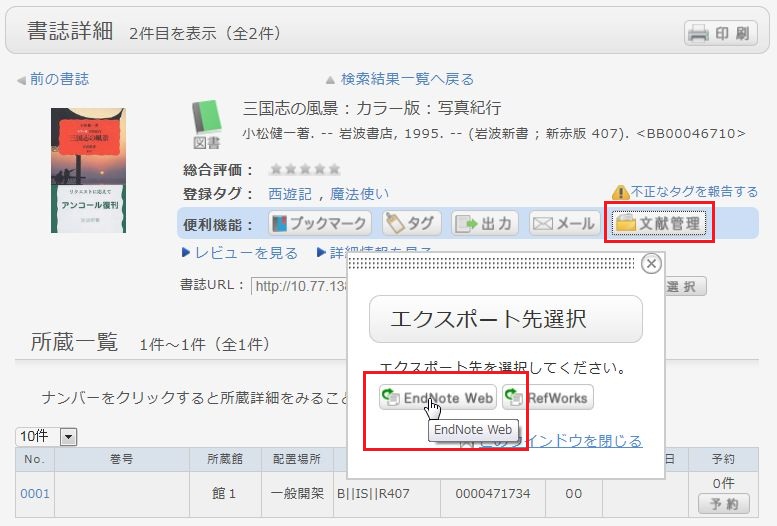
- The selected bibliographic records will be imported into EndNote Web. (If you are not logged in to EndNote Web, the login screen will appear; please enter your email address and password to log in.)
- Log in to EndNote Web.
- Method without downloading a plug-in
- From the bibliographic search results or details screen, click "Export."
(In the search results list, you must select the items you wish to import.) - When the "Select File Export Format" pop-up appears, select "RIS format."
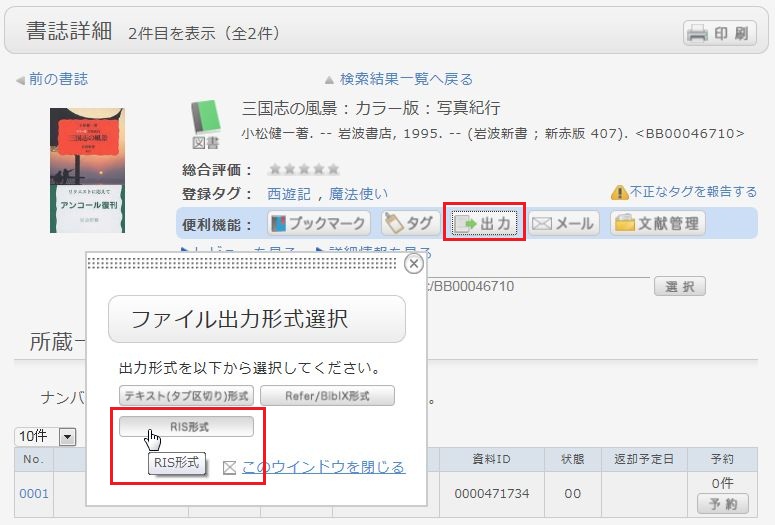
- The file will be downloaded; please save it to an appropriate location on your computer.
- Log in to EndNote Web.
* If you do not have an EndNote account, please register a new user account via "Register for an account." - Click [Collect] → [Import References].
- Click the [Browse] button for "File" and select the file you saved earlier.
- Select "RefMan RIS" for "Import Option."
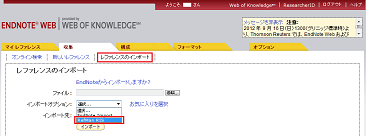
- Specify the destination folder in "Import to" and click the [Import] button.
- The selected bibliographic records will be imported into EndNote Web.
- From the bibliographic search results or details screen, click "Export."
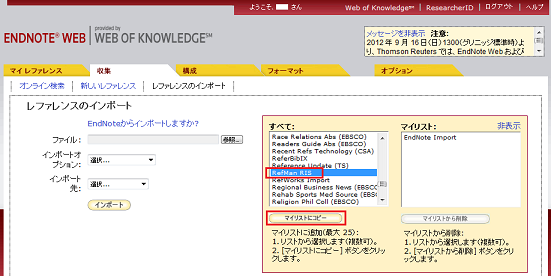
* If "RefMan RIS" is not displayed in the "Import Option," click [Select Favorites], select "RefMan RIS," and click [Copy to Favorites] to add it to your list.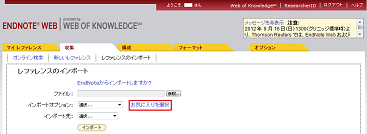
 Reference:
EndNote Web Help - Importing References
EndNote Web System Requirements (Supported Browsers)(USACO)
How do I import bibliographic information from the OPAC to RefWorks?
- You can import bibliographic information from the OPAC to RefWorks via the following screen.
- You can import bibliographic information from the OPAC to RefWorks via "direct import" without needing to download any plug-ins.
- Please register as a new user if it is your first time using the service.
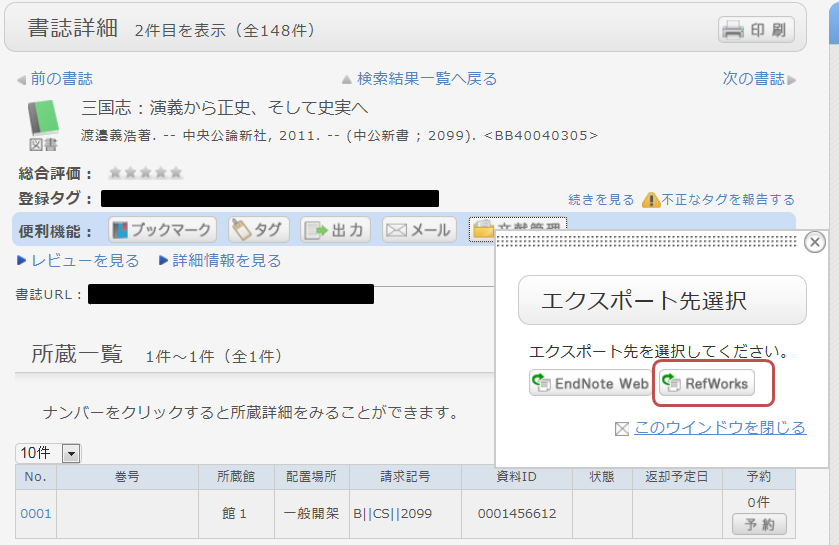
- From the bibliographic search results or details screen, click "Bibliographic Management."
(In the search results list, you must select the items you wish to import.) - When the "Select Export Destination" pop-up appears, select "RefWorks."
- The selected bibliographic records will be imported into RefWorks. (If you are not logged in to RefWorks, the login screen will appear; please enter your login name and password to log in.)
Reference:
RefWorks (Sunmedia)
I want to copy library materials. Are there copiers available in the library?
Yes, there is. Please refer to "Copying Library Materials" on the library website.
About long-term loans.
During the summer, winter, and spring breaks, long-term loan services for general books are available (for undergraduate students only).
What should I do if I lose a book?
Please double-check to make sure you do not have the item in your possession.
In principle, you are required to compensate for any library books that are lost, soiled, or damaged.