



FAQ
Can I search for Japanese materials using only Roman letters (Romaji)?
You can search by converting Romanized Japanese (Romaji) to Katakana by adding a "$" mark to the beginning of the Romanized search term.
- Romaji input supports both Kunrei-shiki and Hepburn systems.
- Long vowel markers are not supported. For example, to get the same search results as "キーワード" (kiwado), please enter "$kiwado" instead of "$kiwâdô".
- In the input examples, "△" represents one or more spaces.
| Input Example | Search Results | Match Example |
|---|---|---|
| $genji | Displays the same search results as entering "ゲンジ" (Genji). | Genji Sekai no Bungaku Genji Monogatari no Hito to Kokoro Genji Monogatari no Sekai |
| $syamisen+$wahuu | Displays the same search results as entering "シャミセン+ワフウ" (Syamisen+Wahuu). | Tamagiku to sono Syamisen Wahuu Wahuu to Youshiki |
| $nihon△$amerika | Displays the same search results as entering "ニホン△アメリカ" (Nihon△Amerika). | Nichibei Kankei Keyword Amerika no Kokoro/Nihon no Kokoro Nichibei Doumei |
About the Article Search, Repository, and Cross-Search tabs.
About the [Article Search] tab
You can search for domestic academic articles. (Links to CiNii Articles)
Please enter a keyword into the search box to perform a search.
You can navigate to the CiNii Articles top page via the search link.
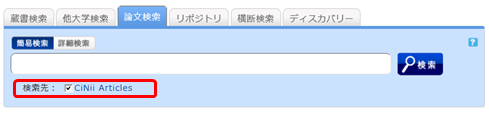
About the [Repository] tab
An institutional repository is a system that systematically collects, preserves, and widely publishes electronic intellectual products created within an institution (such as academic journal articles, theses, research reports for grants, lecture materials, teaching materials, conference presentation materials, etc.) on the institution's server.
Please enter a keyword into the search box to perform a search.
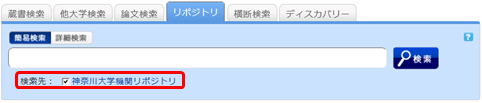
You can navigate to the Kanagawa University Institutional Repository top page via the search link.
About the [Cross Search] tab
From the [Cross Search] tab, please check the libraries or other institutions you wish to search and perform your search.
How to use
- On the search results list screen, you can display search results for each individual target site or the combined search results for all sites.
- The search results from the site that finishes the search the fastest are displayed first.
- To view search results from other sites, please select them from the menu on the left.
- You can display the list of results for each specific search target by clicking "Show all sites" at the top left of the screen, or by clicking the link for each site in the site-specific search results on the left side of the screen.
Notes
- There is a limit to the number of records retrieved per site (10–100 records). If you wish to see all search results for a specific site, please search that site directly.
- The results from [Cross Search] may differ from those obtained by searching the target site directly. Please use [Cross Search] as a guide to determine which site you should use to find the materials you are looking for.
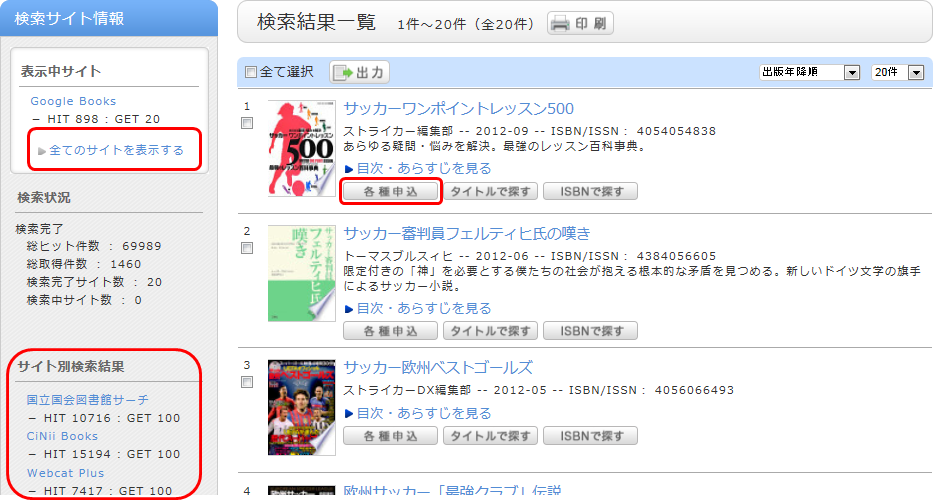
By selecting "Various Requests" displayed for each bibliographic record on the search results list screen, you can place an ILL photocopy request (requesting copies) or an ILL loan request (requesting books).
I found an item in the OPAC, but I don't know where it is located on the shelves.
In the holding information of your search results, there is a field called "Call Number."
When you hover your cursor over this link, an image of the call number label will be displayed.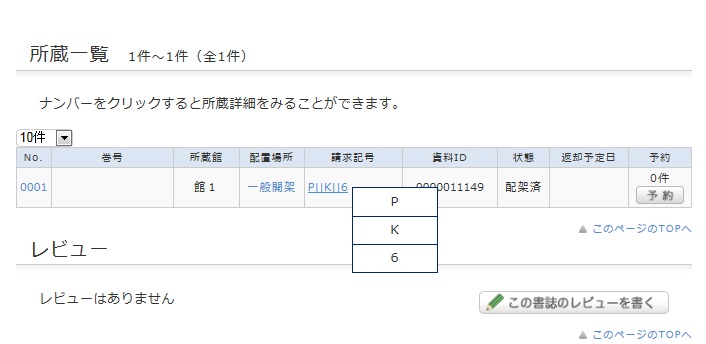
This image corresponds to the label attached to the book.
Books in the library are arranged on the shelves in the order of these call numbers.
Please use the library floor guide and this number to locate the bookshelf where the book is shelved.
What should I do if the material I found in the OPAC is currently checked out?
You can reserve materials that are marked as "Checked out" in the library catalog by following the steps below.
1. Click the [Reserve] button under "Holdings List" on the bibliographic details screen.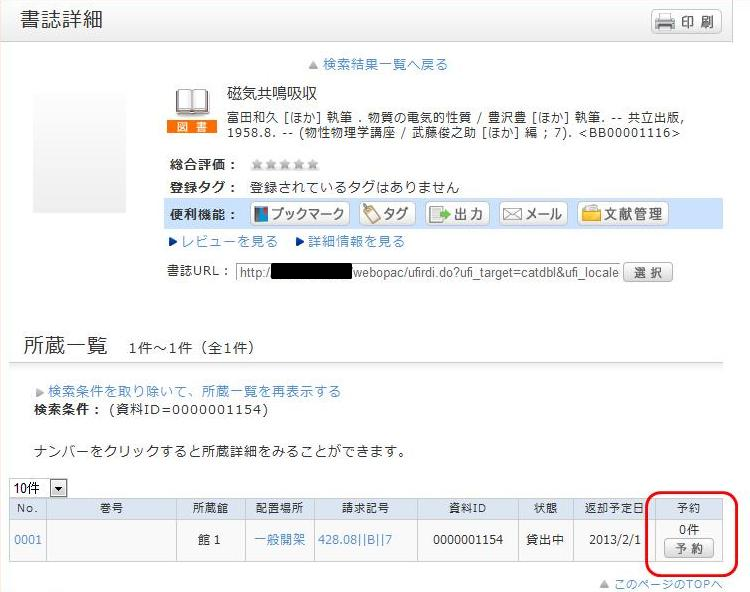
2. On the request condition selection screen, select your desired request conditions and click [Select].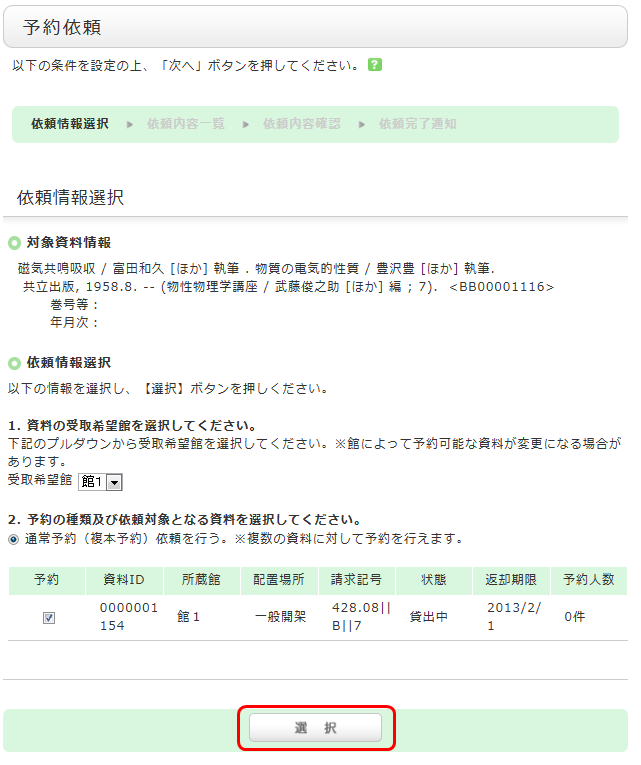
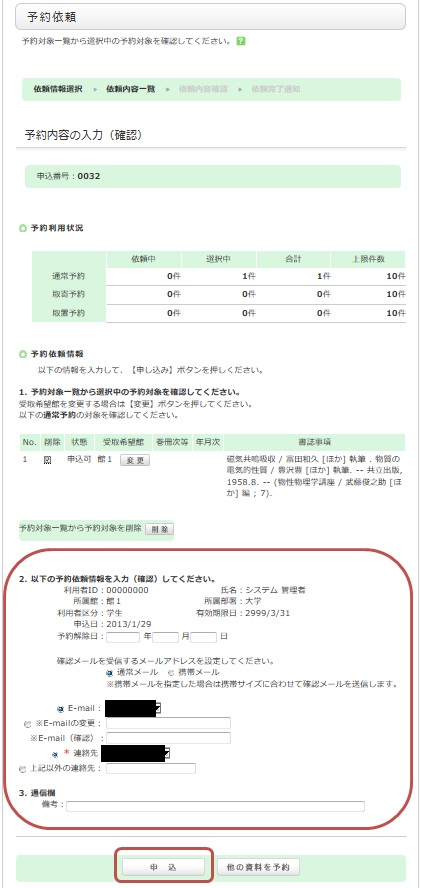
3. On the request information entry screen, confirm the material and applicant information, enter (or verify) the reservation details, and finally click [Apply].
4. Confirm the reservation request details on the "Request Confirmation" screen and click [Confirm].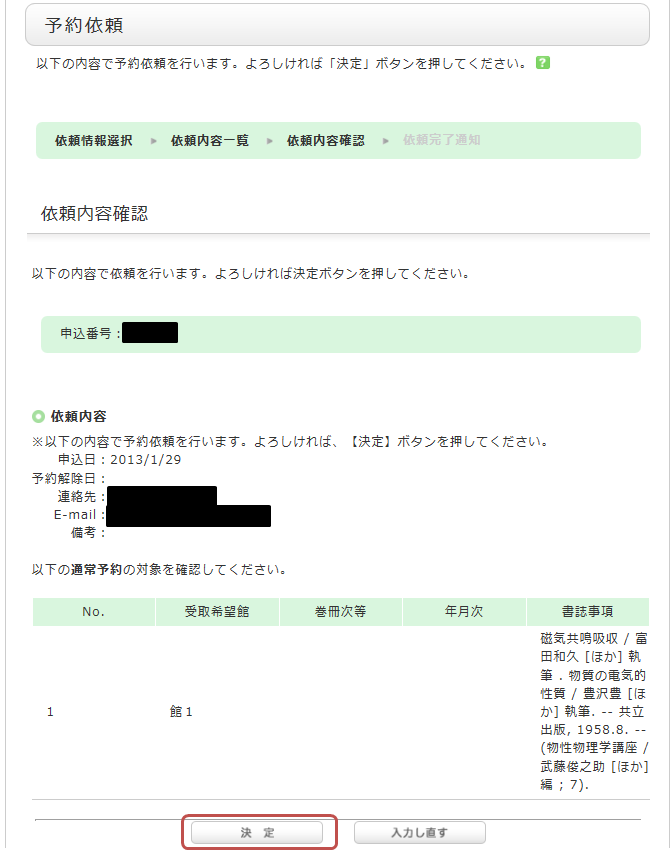
5. The reservation is complete once you see the "Request Completion Notice" screen.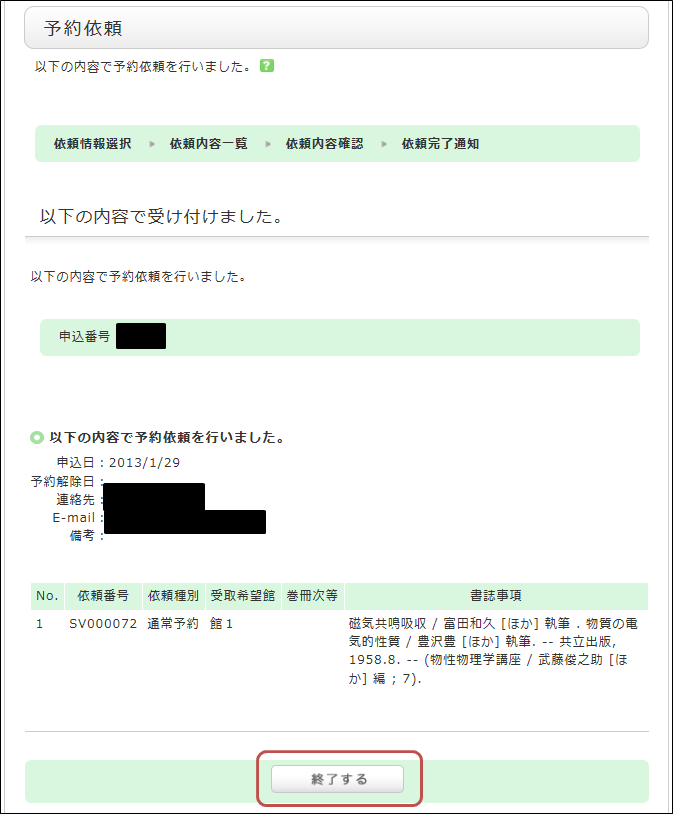
*An automated notification email will be sent to your university email address when your reserved item arrives. The hold period is 1 week.
What if there is material I want to use at a nearby public library?
Please refer to the page below.
How to Find Materials (Library Website)