



FAQ
What happens if I have overdue items or my borrowing privileges are suspended?
If you have not returned materials past their due date, or if your borrowing privileges are suspended because you returned materials late, you will not be able to reserve new items or renew your current loans.
Please make sure to return all materials by their due date.
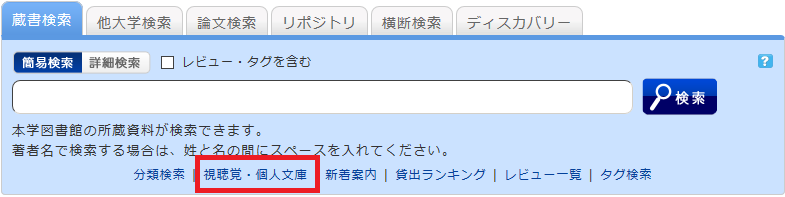
About "Audiovisual/Personal Collections" found under the keyword input box in the [Book Search] tab or in the catalog menu.
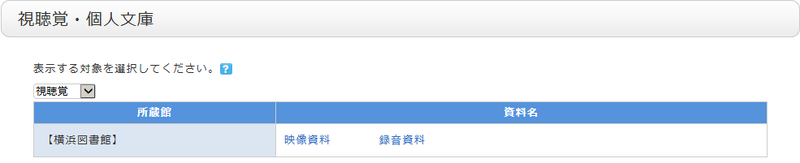
We provide lists for categories that are frequently requested to be viewed as a whole, even though they cannot be searched using secondary keys such as location.
You can also change the display target using the pull-down menu.
What are the tags displayed on the tag search screen?
The library provides tags for materials that are useful to have in list form, such as textbooks and materials selected during student selection tours.
How can I search for reviews and tags?
You can search the titles and full text of reviews and tags using the following five methods:
- Refer to "Recent Tags"
 or "New Reviews"
  on the top page.
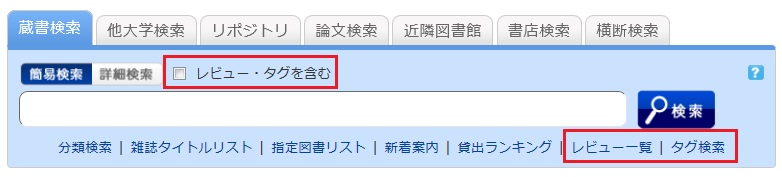
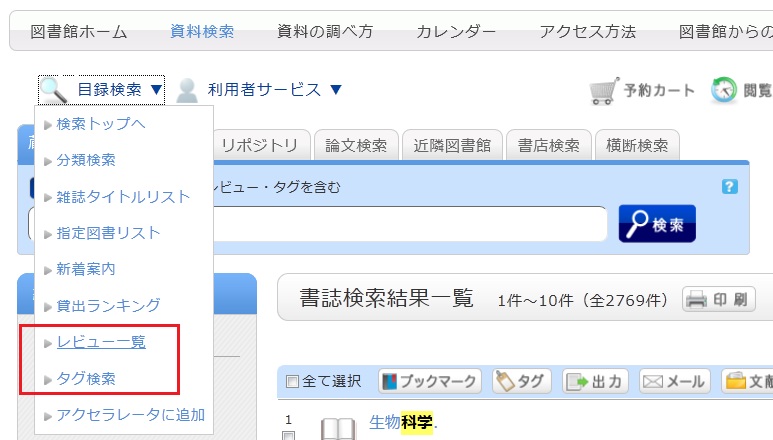
- Select "Review List" or "Tag Search" located below the search box on the [Library Catalog] tab.
- On the [Basic Search] screen of the [Library Catalog] tab, check the "Include Reviews/Tags" box and perform a search.
- On the [Advanced Search] screen of the [Library Catalog] tab, select "Review" or "Tag" from the pull-down menu for the search items.
(Compared to a basic search, this allows you to search using multiple conditions.)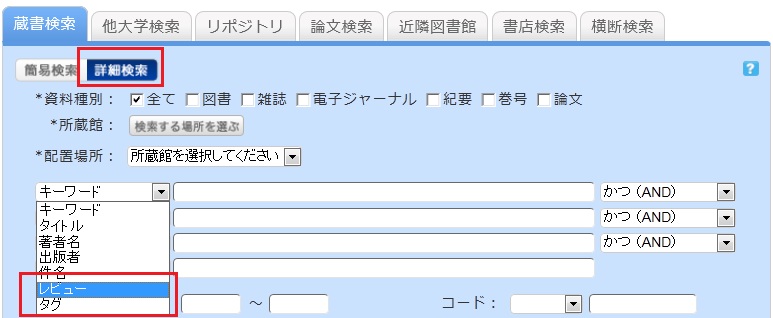
- Select "Review List" or "Tag Search" from the catalog search menu.
On the search results list screen, how do I return to the original list after narrowing down my search using the left-hand menu?
When you enter keywords and filter your search results using the menu on the left side of the bibliographic search results screen, the screen will appear as follows.
In this example, the material type is limited to "Book."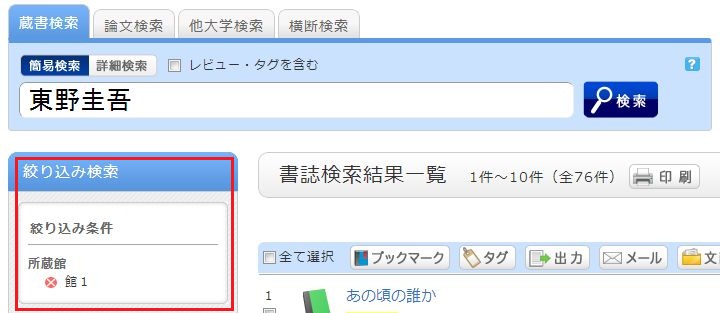
To remove a filtering condition and return to the original search results, click the red × button in the white area located under "Filtered by" in the left menu.
Even if you have applied multiple filters, you can remove any specific filter using the method above, regardless of the order in which they were applied.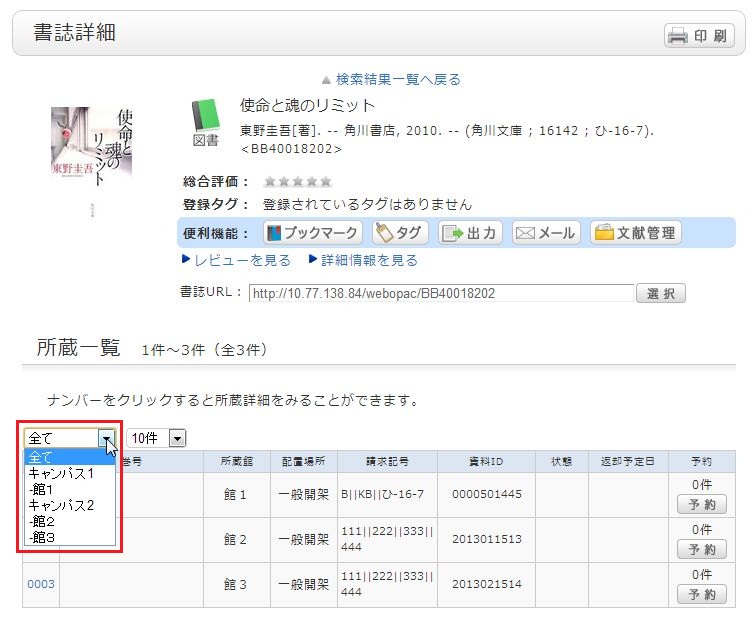
Even after you have filtered by library, selected a title, and moved to the bibliographic details screen, you can still remove the filter or re-filter by another library.
How do I import bibliographic information from the OPAC to EndNote Web?
You can import bibliographic information from the OPAC into EndNote Web.
- How to import bibliographic information directly from the OPAC to EndNote Web (Direct Import)
(You must download the plug-in before importing.)- Log in to EndNote Web.
* If you do not have an EndNote account, please register a new user account via "Register for an account."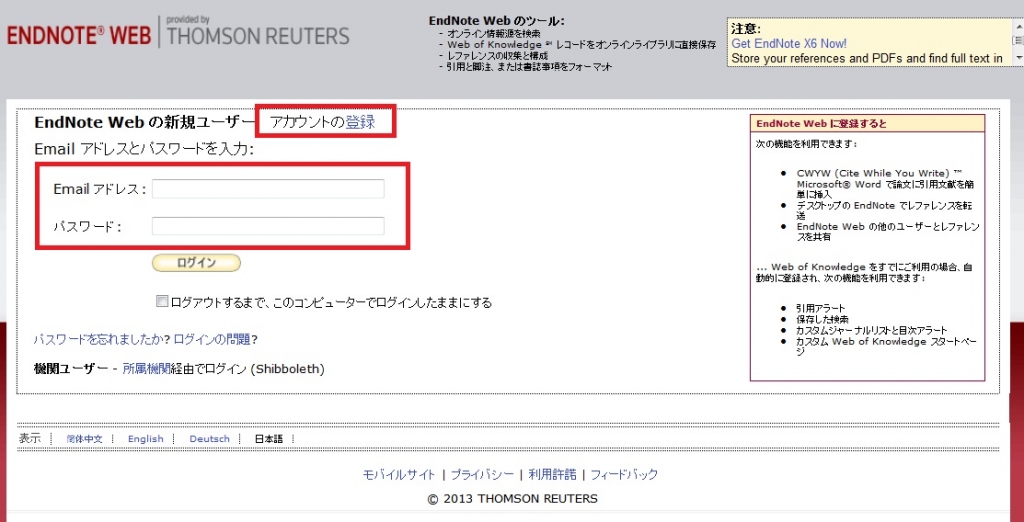
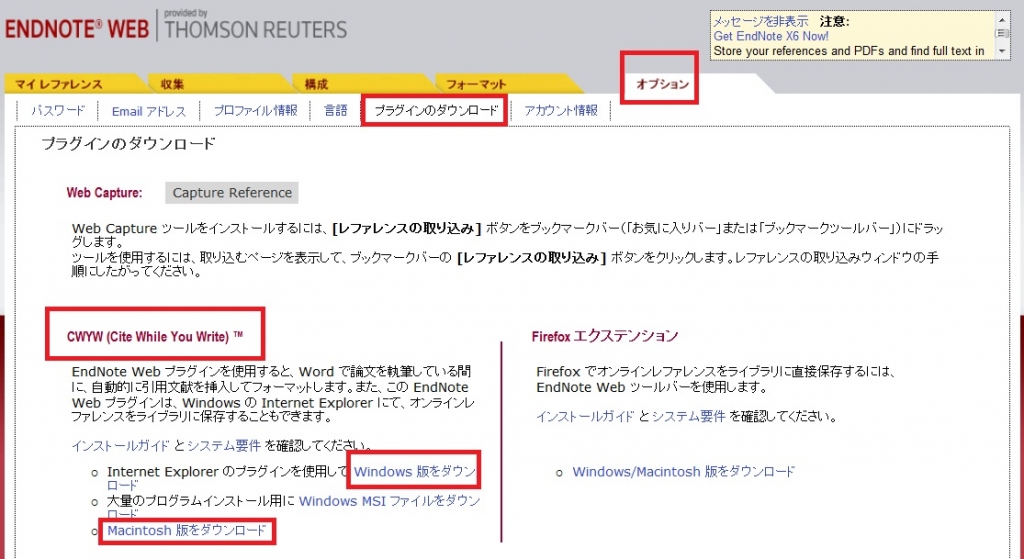
- Click [Options] > [Download Installers].
- If you are using Internet Explorer or Safari, select "Download Windows" or "Download Macintosh" under CWYW (Cite While You Write) based on your computer's OS to download the plug-in.
- If you are using Firefox:
- Click "Download Windows" or "Download Macintosh" under Firefox Extension to download the plug-in.
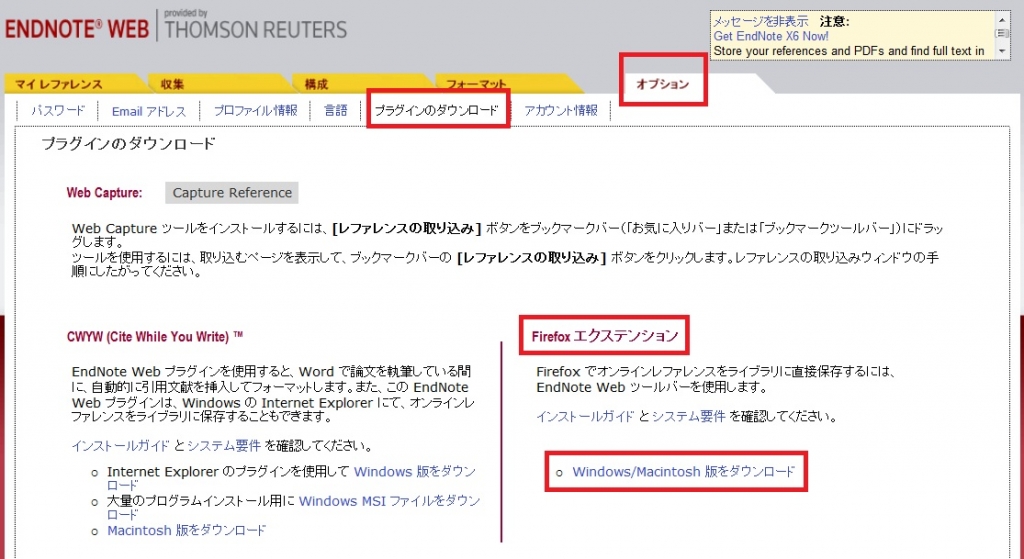
- You will be prompted to restart Firefox; please do so.
- In the Firefox menu, go to [Tools] → [Add-ons] → [Extensions] and click "Options" for EndNote Web.
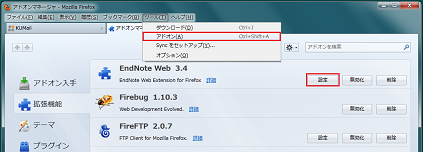
- Confirm that the checkbox in the pop-up is checked. (If it is not, please check it.)
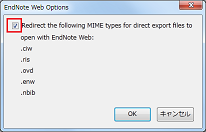
This completes the plug-in download. - If you are using Internet Explorer or Safari, select "Download Windows" or "Download Macintosh" under CWYW (Cite While You Write) based on your computer's OS to download the plug-in.
- From the bibliographic search results or details screen, click "Bibliographic Management."
(In the search results list, you must select the items you wish to import.) - When the "Select Export Destination" pop-up appears, select "EndNote Web."
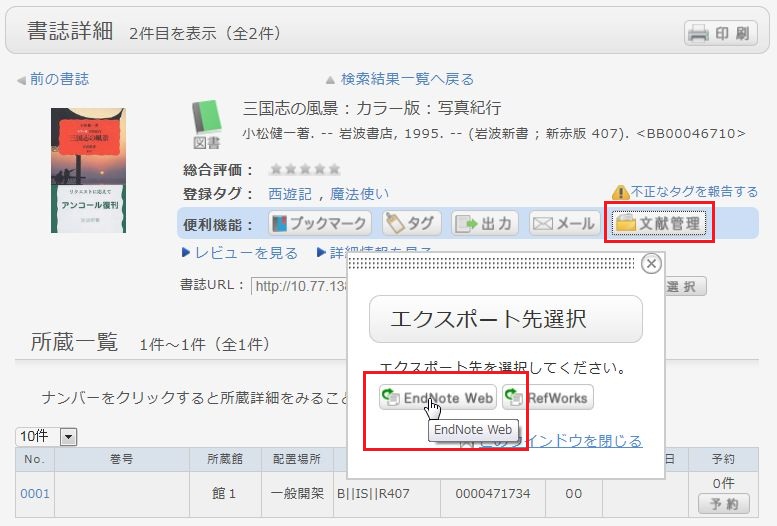
- The selected bibliographic records will be imported into EndNote Web. (If you are not logged in to EndNote Web, the login screen will appear; please enter your email address and password to log in.)
- Log in to EndNote Web.
- Method without downloading a plug-in
- From the bibliographic search results or details screen, click "Export."
(In the search results list, you must select the items you wish to import.) - When the "Select File Export Format" pop-up appears, select "RIS format."
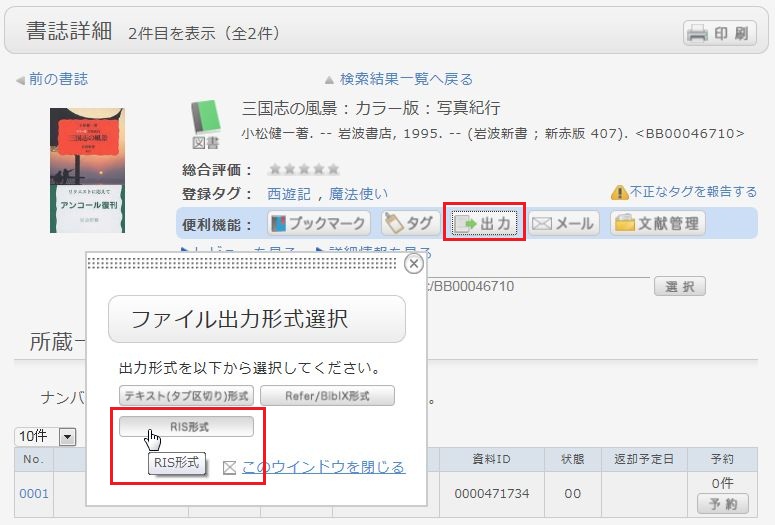
- The file will be downloaded; please save it to an appropriate location on your computer.
- Log in to EndNote Web.
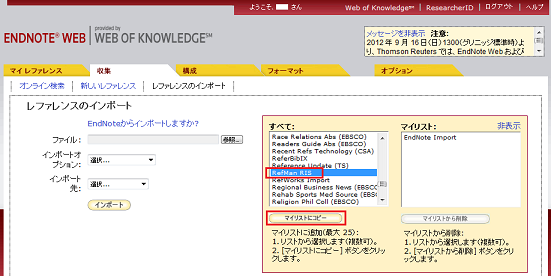
* If you do not have an EndNote account, please register a new user account via "Register for an account." - Click [Collect] → [Import References].
- Click the [Browse] button for "File" and select the file you saved earlier.
- Select "RefMan RIS" for "Import Option."
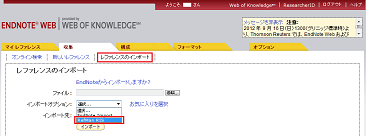
- Specify the destination folder in "Import to" and click the [Import] button.
- The selected bibliographic records will be imported into EndNote Web.
- From the bibliographic search results or details screen, click "Export."
* If "RefMan RIS" is not displayed in the "Import Option," click [Select Favorites], select "RefMan RIS," and click [Copy to Favorites] to add it to your list.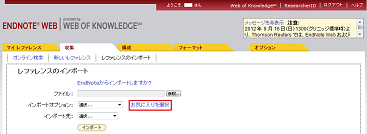
 Reference:
EndNote Web Help - Importing References
EndNote Web System Requirements (Supported Browsers)(USACO)
How do I import bibliographic information from the OPAC to RefWorks?
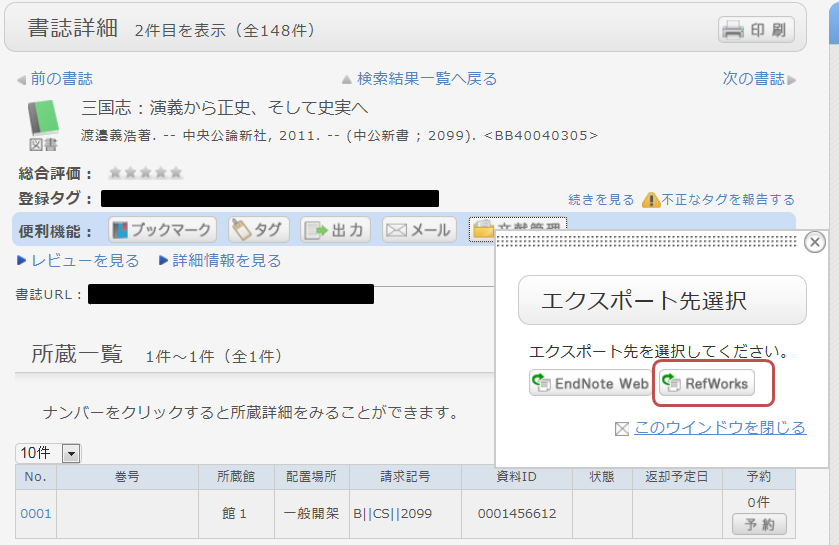
- You can import bibliographic information from the OPAC to RefWorks via the following screen.
- You can import bibliographic information from the OPAC to RefWorks via "direct import" without needing to download any plug-ins.
- Please register as a new user if it is your first time using the service.
- From the bibliographic search results or details screen, click "Bibliographic Management."
(In the search results list, you must select the items you wish to import.) - When the "Select Export Destination" pop-up appears, select "RefWorks."
- The selected bibliographic records will be imported into RefWorks. (If you are not logged in to RefWorks, the login screen will appear; please enter your login name and password to log in.)
Reference:
RefWorks (Sunmedia)
I want to copy library materials. Are there copiers available in the library?
Yes, there is. Please refer to "Copying Library Materials" on the library website.
About long-term loans.
During the summer, winter, and spring breaks, long-term loan services for general books are available (for undergraduate students only).
What should I do if I lose a book?
Please double-check to make sure you do not have the item in your possession.
In principle, you are required to compensate for any library books that are lost, soiled, or damaged.