



FAQ
What features does "My Folder" offer?
The following features are collectively referred to as "My Folder" functions.
1. Bookmarks
This feature allows you to create a list of materials on the web. You can register books you have already read or those you plan to read in the future.
It can also be used as a list for exporting data to EndNote or RefWorks.
2. Favorite Searches
This feature allows you to save search criteria. You can use the same search criteria for future searches.
3. Review History
This feature allows you to view the history of reviews you have written.
Is it possible to save a list of materials to check later?
Materials you have searched for and viewed details of in the library catalog are recorded as "Browsing History" until you close your browser (or remain inactive for an extended period).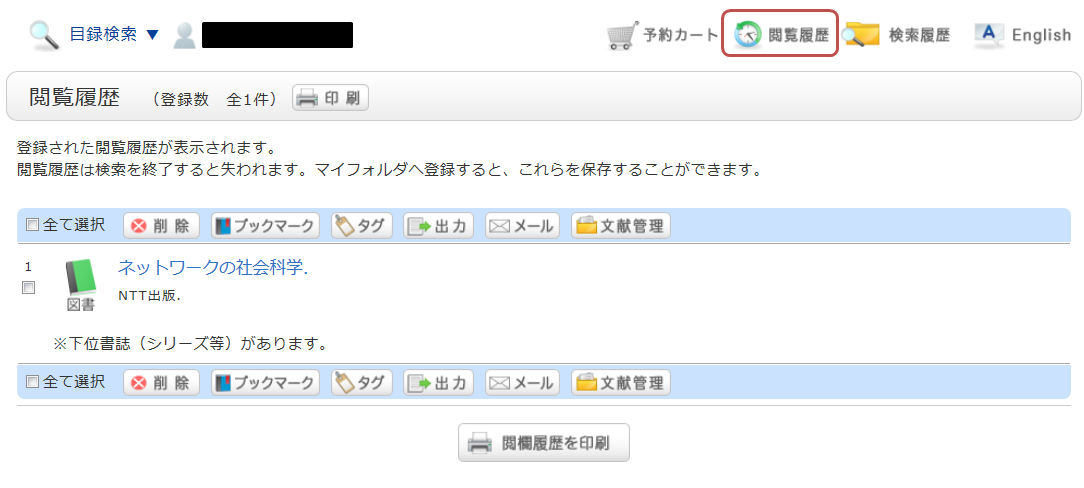
*The image shows the screen after clicking "Browsing History."
If you wish to view these materials at a later date, please add them to your bookmarks.
You can add items to your bookmarks from the search results list or the bibliographic details screen.
On the list screen, check the checkbox for the material you wish to register and click the "Bookmark" button.
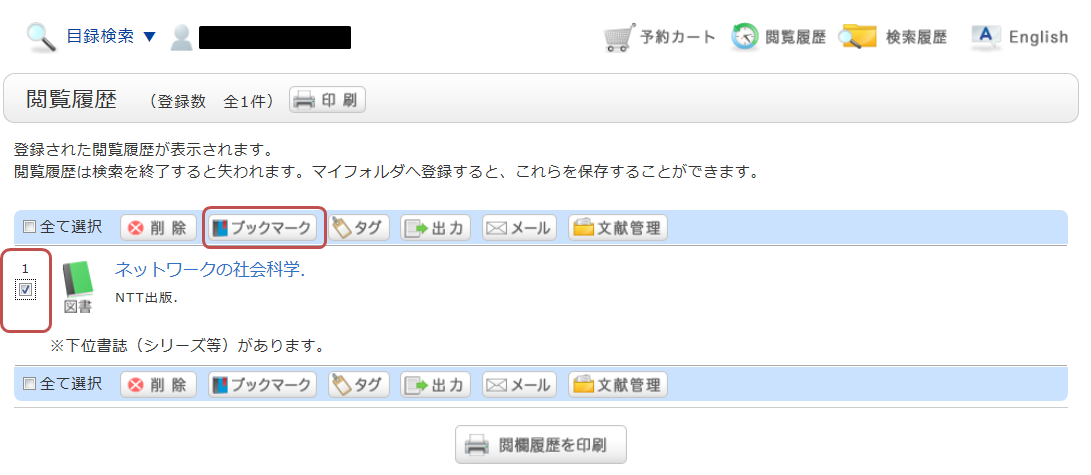
You can view your registered items from "Bookmarks."
Is it possible to save search criteria for future use?
Search criteria entered in the OPAC library catalog are recorded as "Search History" until you close your browser (or remain inactive for an extended period).
You can view your search history by clicking the "Search History" button at the top of the screen.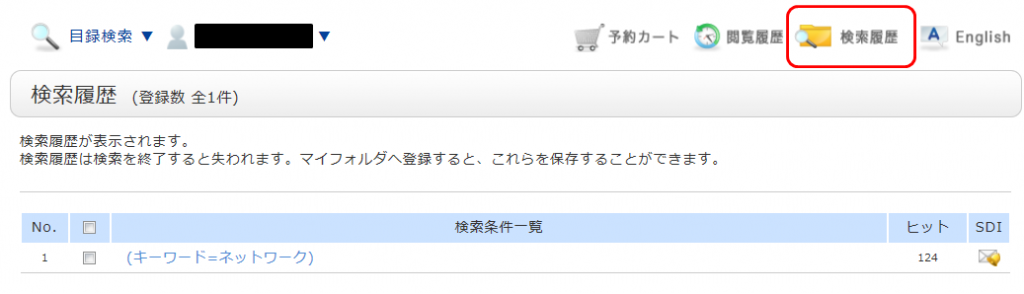
*The image shows the screen after clicking "Search History."
If you wish to save your search criteria for later use, check the checkbox for the criteria you want to register on the search history screen and click the "Add to Favorites" button.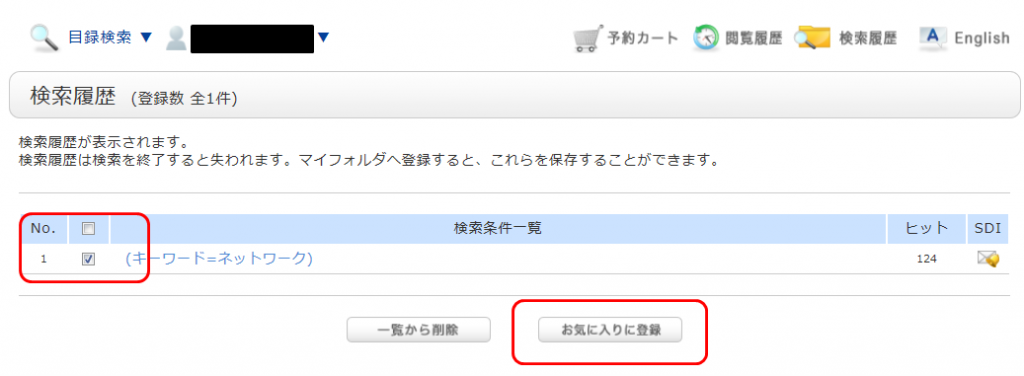
You can view your registered items from "Favorite Searches" in the OPAC.
Can I be notified when a new issue of journal "○○" arrives?
We provide an alert service that notifies you via email or RSS when new issues of journals arrive.
You can sign up for the alert service from the bibliographic detail screen.
Please note that this service applies only to journals that are currently being received.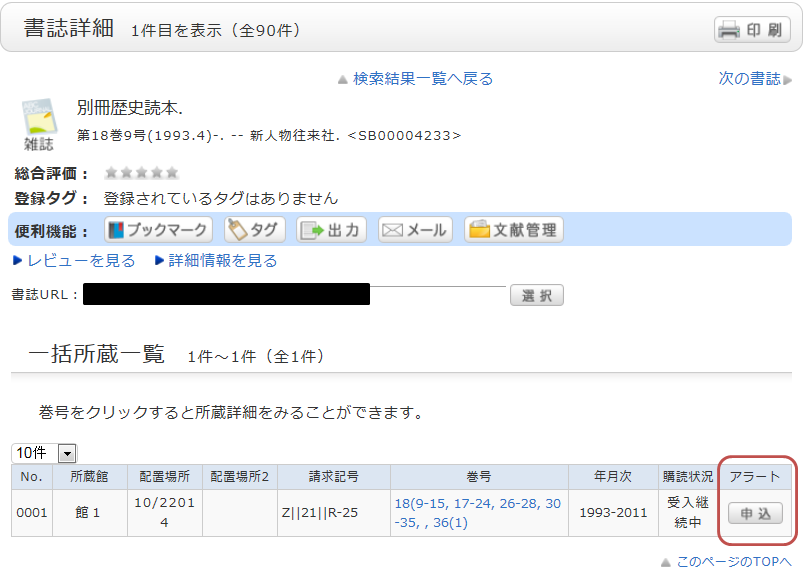
Once your request is complete, the registered conditions will be displayed on the alert list screen.
On the alert list screen, you can stop notifications or change the delivery frequency.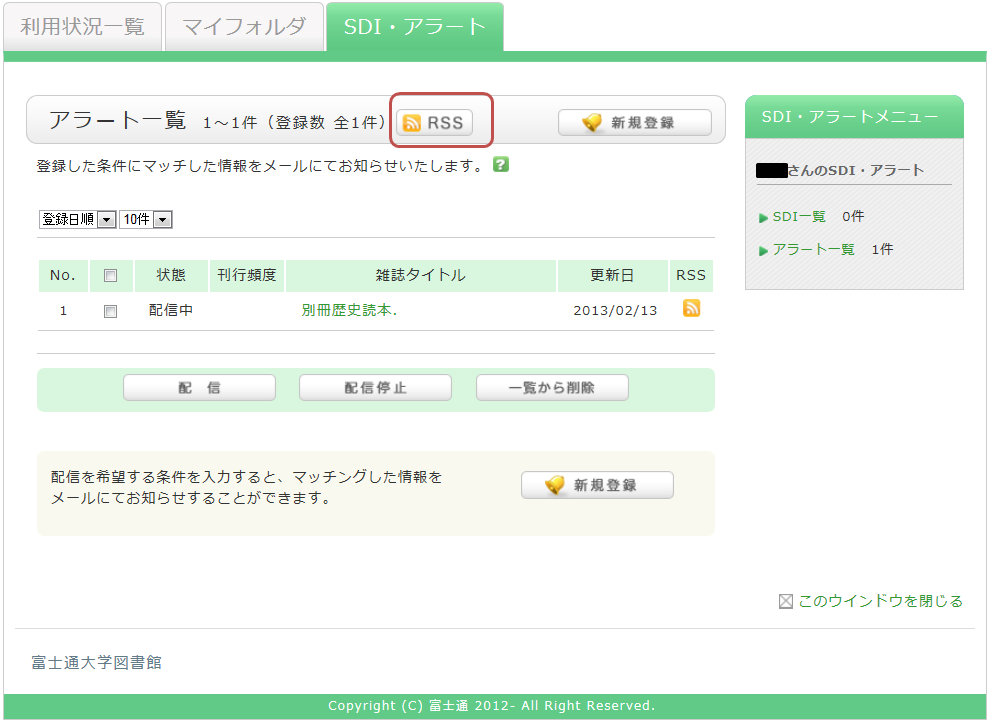
You can also register with an RSS reader by clicking the "RSS" button.
By registering with an RSS reader, you can check for new arrivals of relevant materials without having to check the OPAC.
*The following journals are not eligible for alerts. Please be aware that you will not receive notifications even if you sign up.
●Yokohama
・Items with blank volume/issue numbers
・Items located in "Basement 1F Stack," "Basement 2F Stack," or "Building 23 Stack"
●Minatomirai
・Items with blank volume/issue numbers
Can I be notified when new books related to "○○" arrive?
The OPAC offers a service called Alert.
This feature remembers your search criteria and notifies you via email, RSS, or other methods when materials matching those criteria are newly acquired.
You can register by clicking "Save Search Criteria" after performing a search in the OPAC library catalog.
Alternatively, you can also register from the "Alerts" section of the OPAC.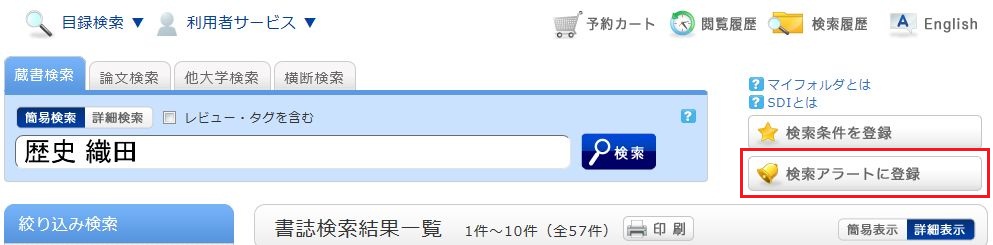
Once registered, your alert list screen will be displayed.
From here, you can view your active delivery list and change the delivery frequency.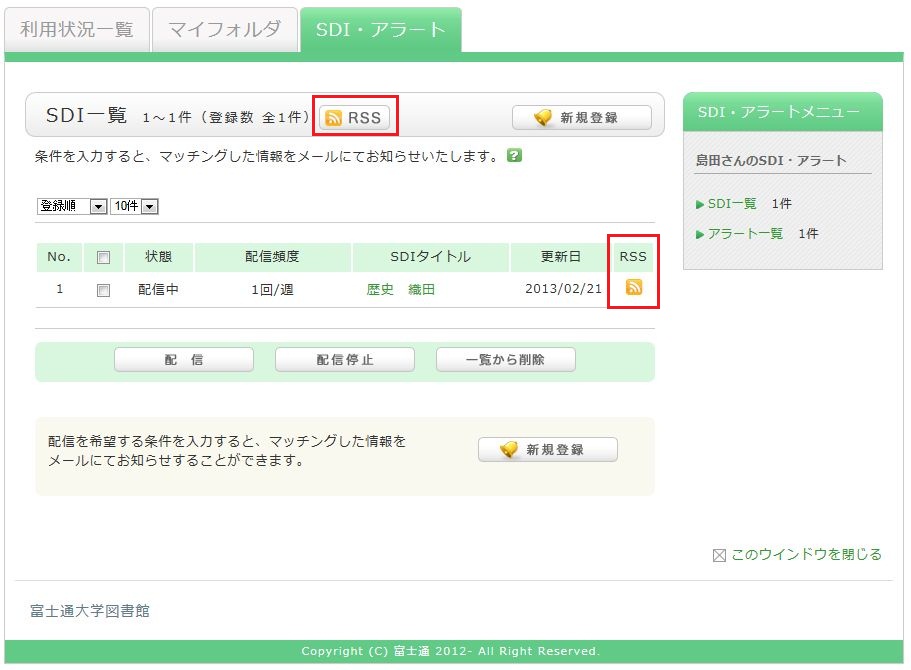
You can register for the service in an RSS reader by clicking the "RSS" button.
By registering in an RSS reader, you can check for new arrivals of the relevant materials without having to check the OPAC.