



FAQ
How do I register a review?
To register a review, click [Write a review for this book] on the bibliographic details screen.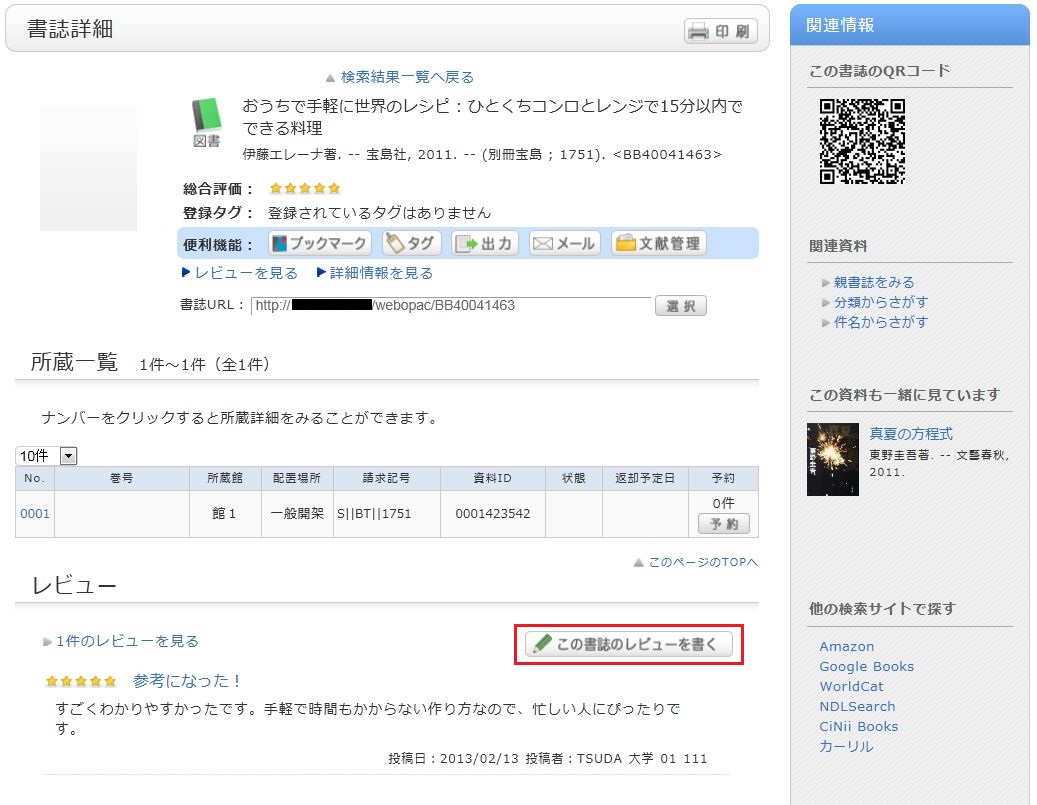
Entering a Review
- Check the bibliographic item for which you are writing a review, select a rating (1-5 stars), enter the review title and body, and click [Post].
HTML tags and machine-dependent characters cannot be used. - Review your submission details. If they are correct, click [Confirm]. If you wish to re-enter the information, click [Re-enter].
- When a review is published, in addition to the review title and body, the contributor's date of posting, department, library affiliation, and user category will be displayed.
Evaluating Reviews
You can comment on reviews, vote on their helpfulness, or report inappropriate reviews.
From the review details screen, click the following options to proceed to the input screen:
- Was this review helpful? ▶ Yes ▶ No
- Report as an inappropriate review
- Write a comment on this review

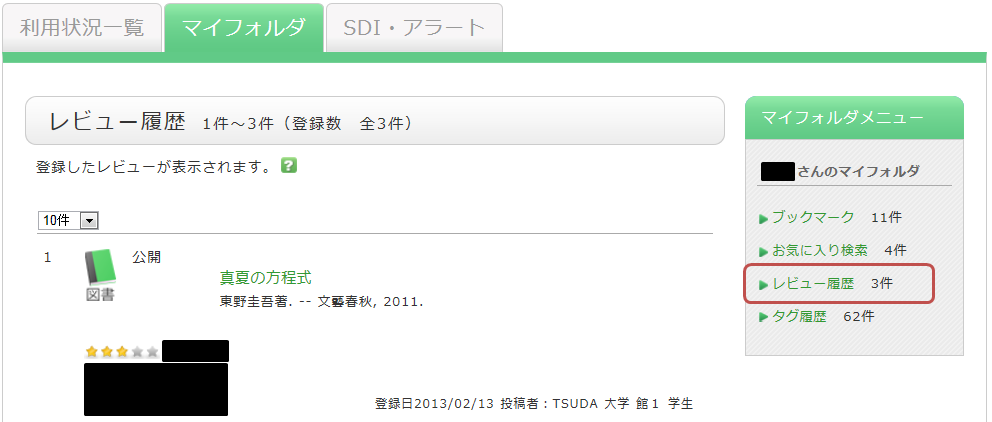
How can I check the reviews I have written?
You can check this under "OPAC > My Folder > Review History."
There is a book I would like the library to purchase.
You can submit a purchase request to the library by accessing "New Purchase Request" under "User Service" on the left side of the OPAC top page and filling out the required information (students only). The library individually evaluates whether to purchase requested materials based on criteria such as their suitability as university library collection resources and whether they will be useful to a wide range of users. Please note that not all requested materials are purchased.
I have a question, opinion, or request for the library.
Please come to the library counter.
What kind of service is the OPAC?
It is a general term for the library's catalog search system.
It is an abbreviation for "Online Public Access Catalog."